Understanding SharePoint File Downloads and Cloud Icons
When using SharePoint or OneDrive, you may notice cloud icons next to some files or folders. This indicates whether the file is stored locally on your computer or only in the cloud.
Cloud Symbol (☁️)
If a file or folder has a cloud icon, it means the content is stored online in SharePoint and not yet downloaded to your device.
This is completely normal — you can still view and open these files while connected to the internet.
How to Download a File Locally
If you plan to edit a file:
Double-click the file in File Explorer.
Windows will automatically download it from SharePoint.
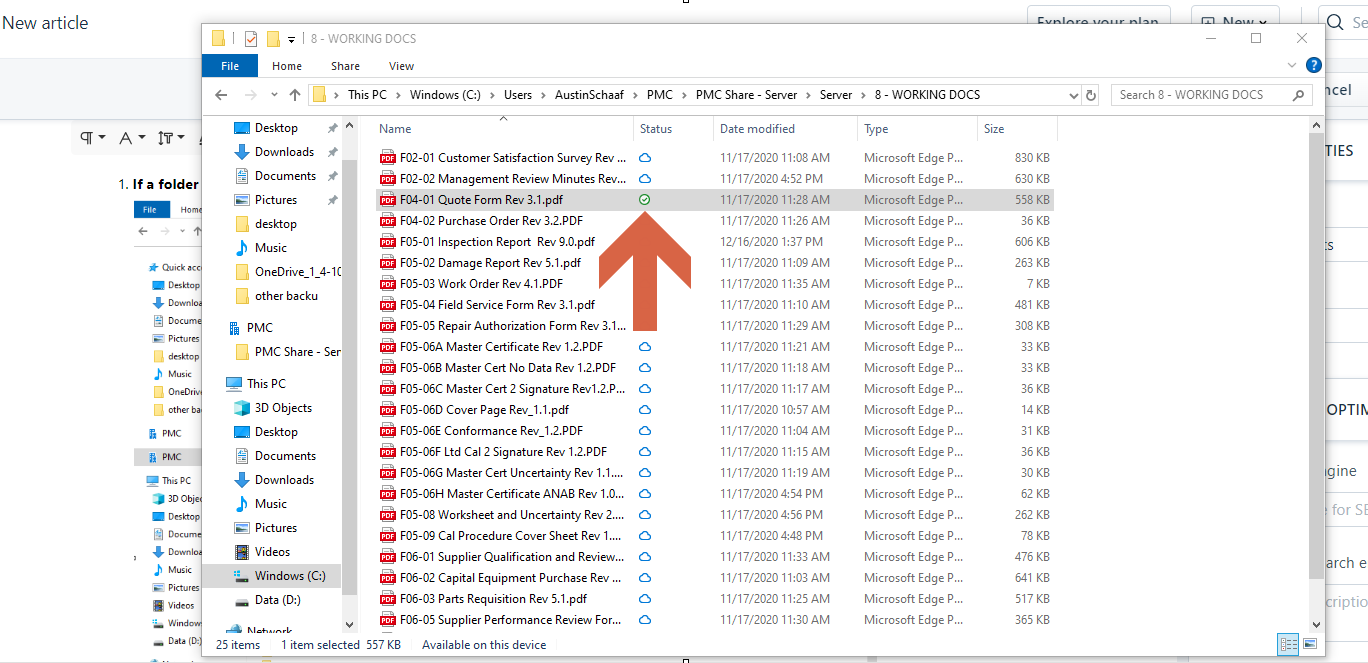
Once downloaded, the icon will change to show a green checkmark — meaning it’s now stored on your device.
You only need to do this for the specific files you’re actively working on.
Local File Icon (✔️)
A file with a green checkmark means it is stored both on your device and in the cloud.
You can open and edit it even when offline; your changes will sync to SharePoint the next time you connect to the internet.
Example
When a file has been successfully downloaded, it will look like this:
Was this article helpful?
That’s Great!
Thank you for your feedback
Sorry! We couldn't be helpful
Thank you for your feedback
Feedback sent
We appreciate your effort and will try to fix the article