How to Report an Email as Phishing
If you receive a suspicious or unexpected email, it’s important to report it to keep your account and organization secure. Follow these steps to report phishing directly in Outlook.
1. Identify a Suspicious Email
Look for warning messages in Outlook such as:
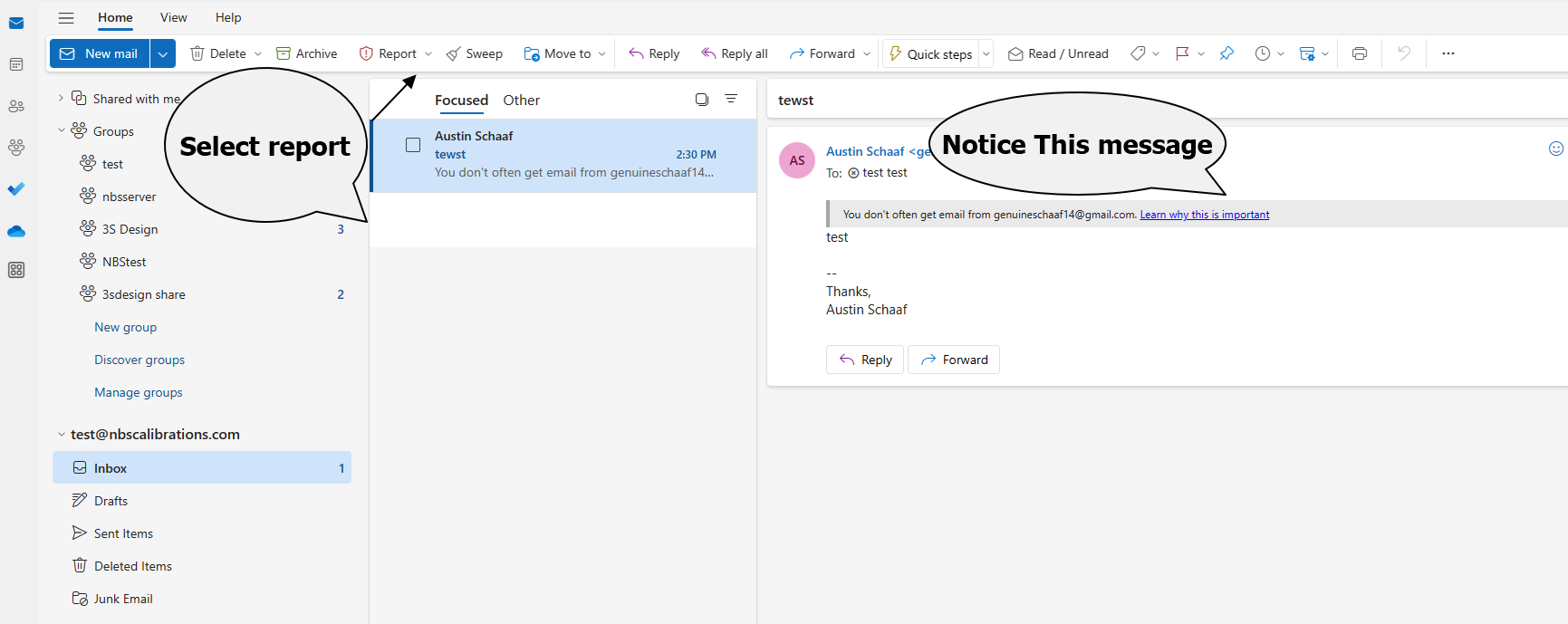
“You don’t often get email from this sender…”Do not click any links or open attachments in suspicious messages.
If you’re unsure, report it — IT will review it safely.
2. Open the Report Menu
Select the suspicious message in your inbox.
On the Outlook toolbar, click Report (shown at the top of your screen).
In some versions of Outlook, this may appear as a shield icon or under “More actions (⋯).”
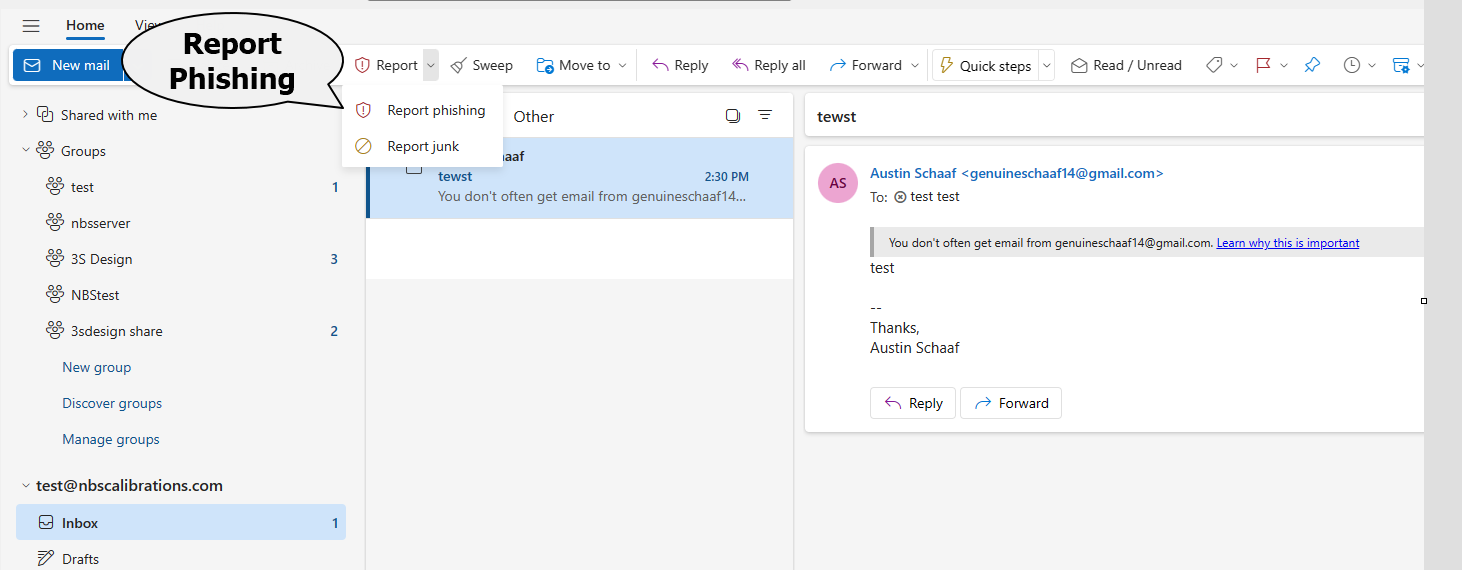
3. Choose “Report Phishing”
From the dropdown menu, select Report phishing.
The email will be automatically submitted to Microsoft and your IT security team for analysis.
It will also be moved out of your inbox to keep you protected.
4. That’s It!
Once reported, you can safely delete the message.
If it was a legitimate email, IT will review and restore it if needed.
Need Help?
If the Report Phishing button is missing or not working, contact the IT helpdesk at support@threesdesign.net or notify your site admin.
Was this article helpful?
That’s Great!
Thank you for your feedback
Sorry! We couldn't be helpful
Thank you for your feedback
Feedback sent
We appreciate your effort and will try to fix the article